




.png?width=432&height=358&name=Government%20(1).png)



















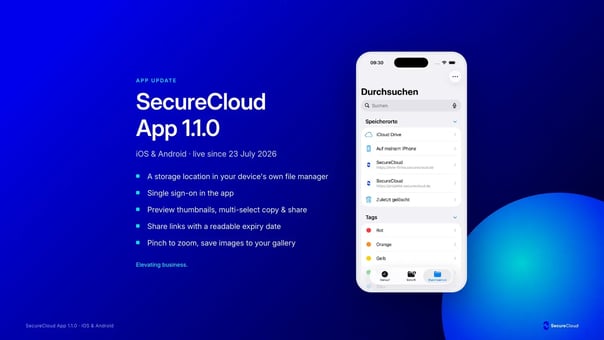
Version 1.1.0 of the SecureCloud app has been live since July 23, 2026, for iOS and Android. The update focuses on three things you use every day: signing in, managing files, and managing photos. The biggest change is the integration with your device’s file manager. This makes SecureCloud a storage location that your device treats just like any other.
A quick overview: the four sections
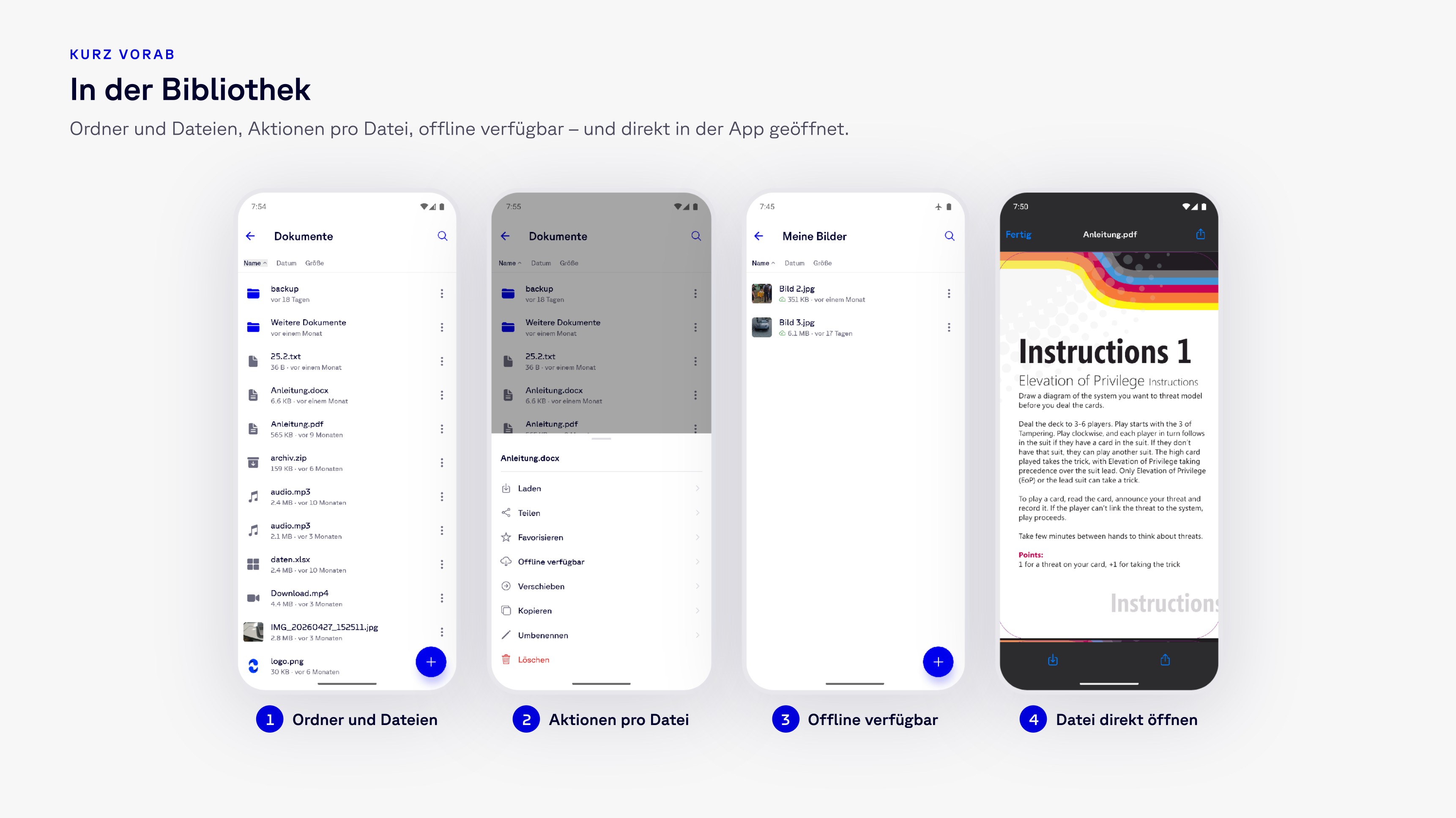
Everything described below takes place in one of the four sections in the bottom bar: Libraries for folders and files, Favorites for everything you access regularly, Activity for changes, and Settings. In a library, you can see your folder structure, the actions available for each file, and which files are available offline—and you can open files directly within the app.
The Core Feature: SecureCloud as a Storage Location on Your Device
Until now, the app was the only way to access your libraries when working on your smartphone or tablet. With version 1.1.0, simply enable the “Show in System File Manager” option in Settings once—and SecureCloud will appear as a storage location in your device’s file manager: on iOS, in the Files app next to iCloud Drive and local storage; on Android, in the system file manager.
From there, SecureCloud behaves just like any other storage location:
- Upload files to a library and download them from it
- Move, copy, and rename
- Delete
- Search all libraries you have access to
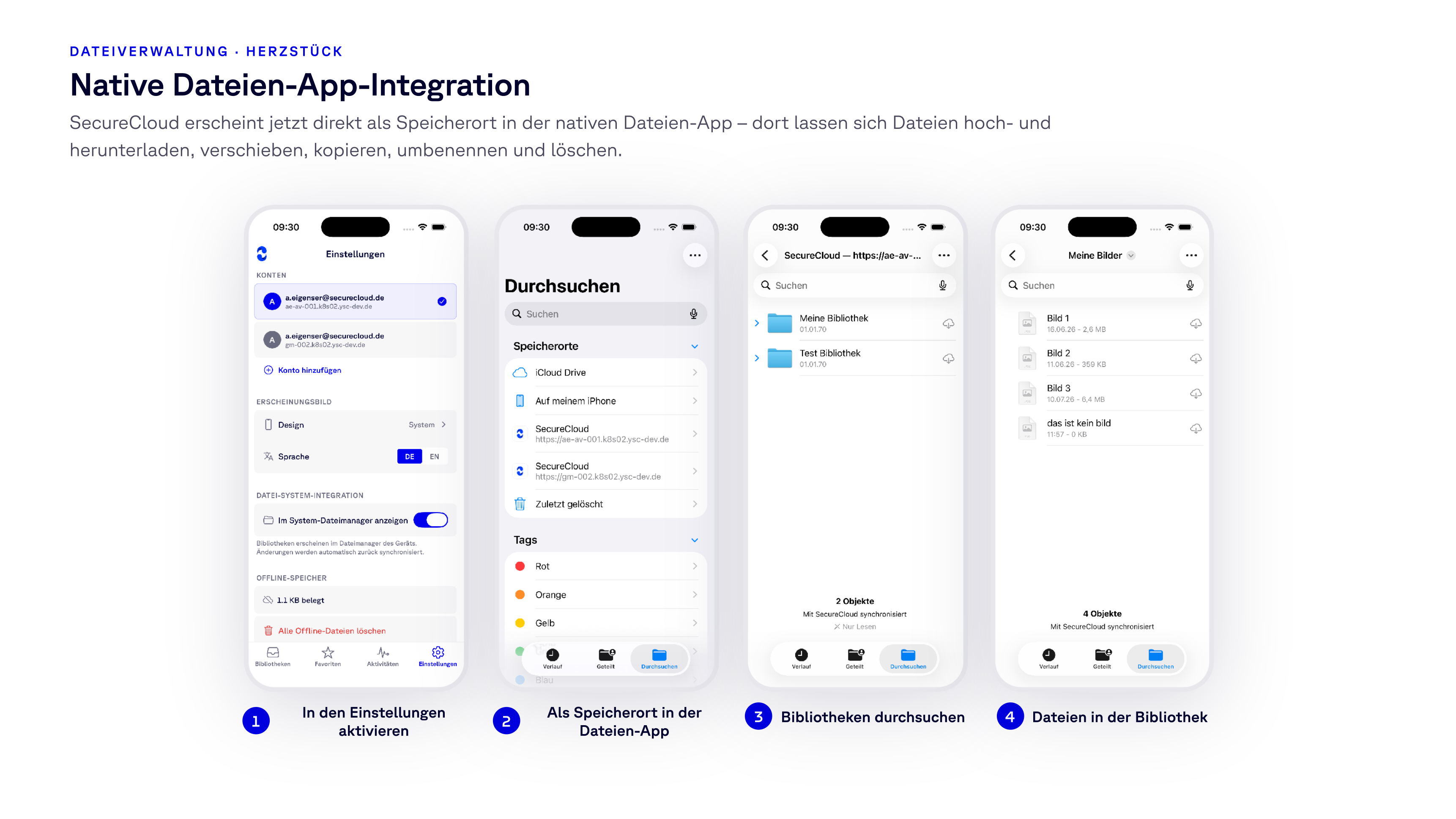
The practical result: SecureCloud is no longer a separate destination you have to access on its own. You can attach a contract to an email directly from the library, save a scan from the scanning app to the client folder, and drag a file into the application you’re already working in. No detours, no downloading-and-re-uploading, and no second copy left sitting in the Downloads folder. The app automatically syncs changes back.
Single Sign-On Login
If your organization uses Single Sign-On, the app now offers this option directly on the login screen. Above the usual fields for email address and password, the “Log in with SSO” button appears; the app redirects you to your identity provider’s login page, and after authentication, you’ll be taken directly to your libraries.
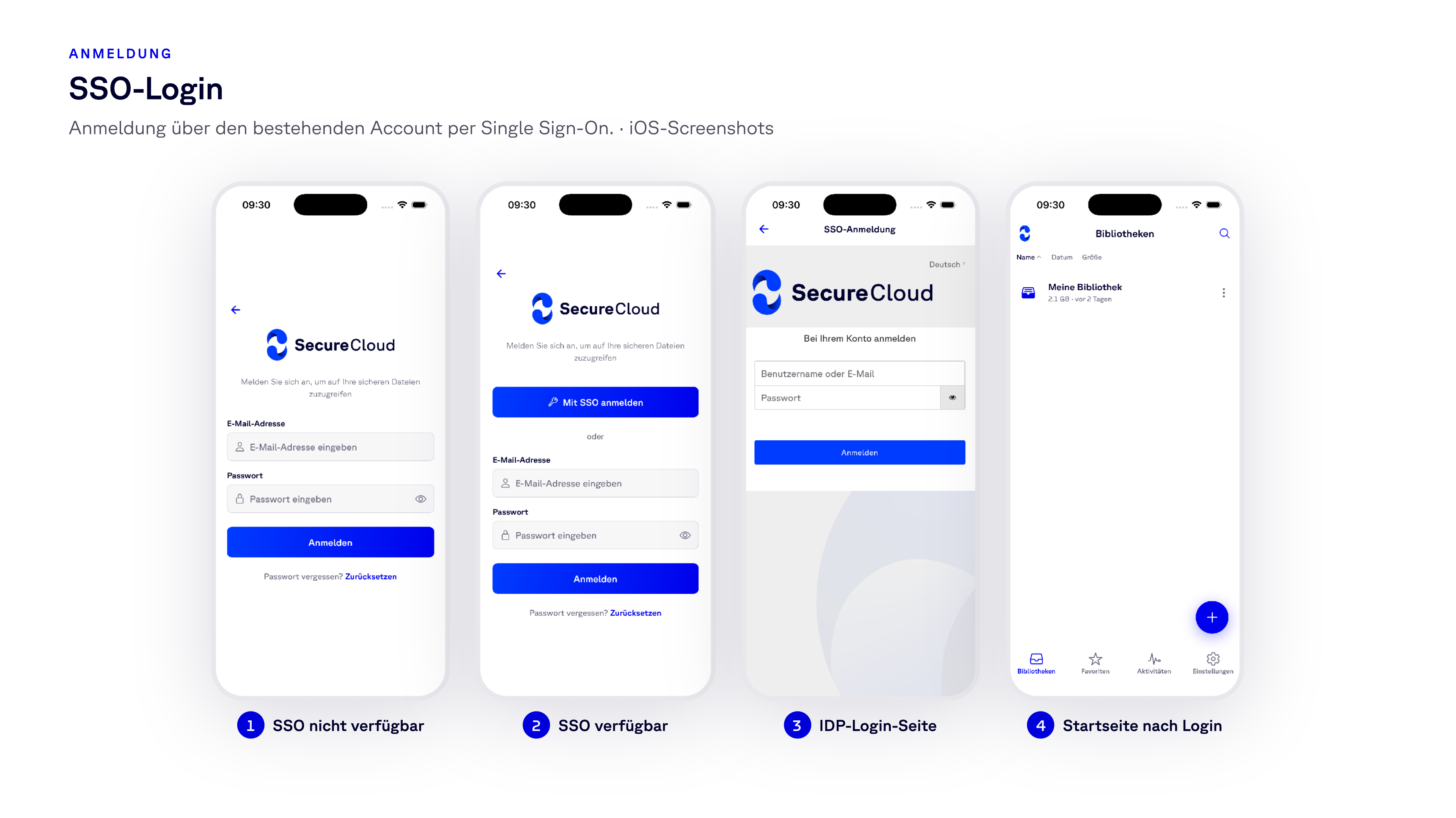
Two details to note: The SSO button only appears for accounts where Single Sign-On is actually set up—no one ends up in a dead end. And you continue to use your existing account. There is no separate identity for mobile use.
Everyday File Management
Thumbnails in the File View
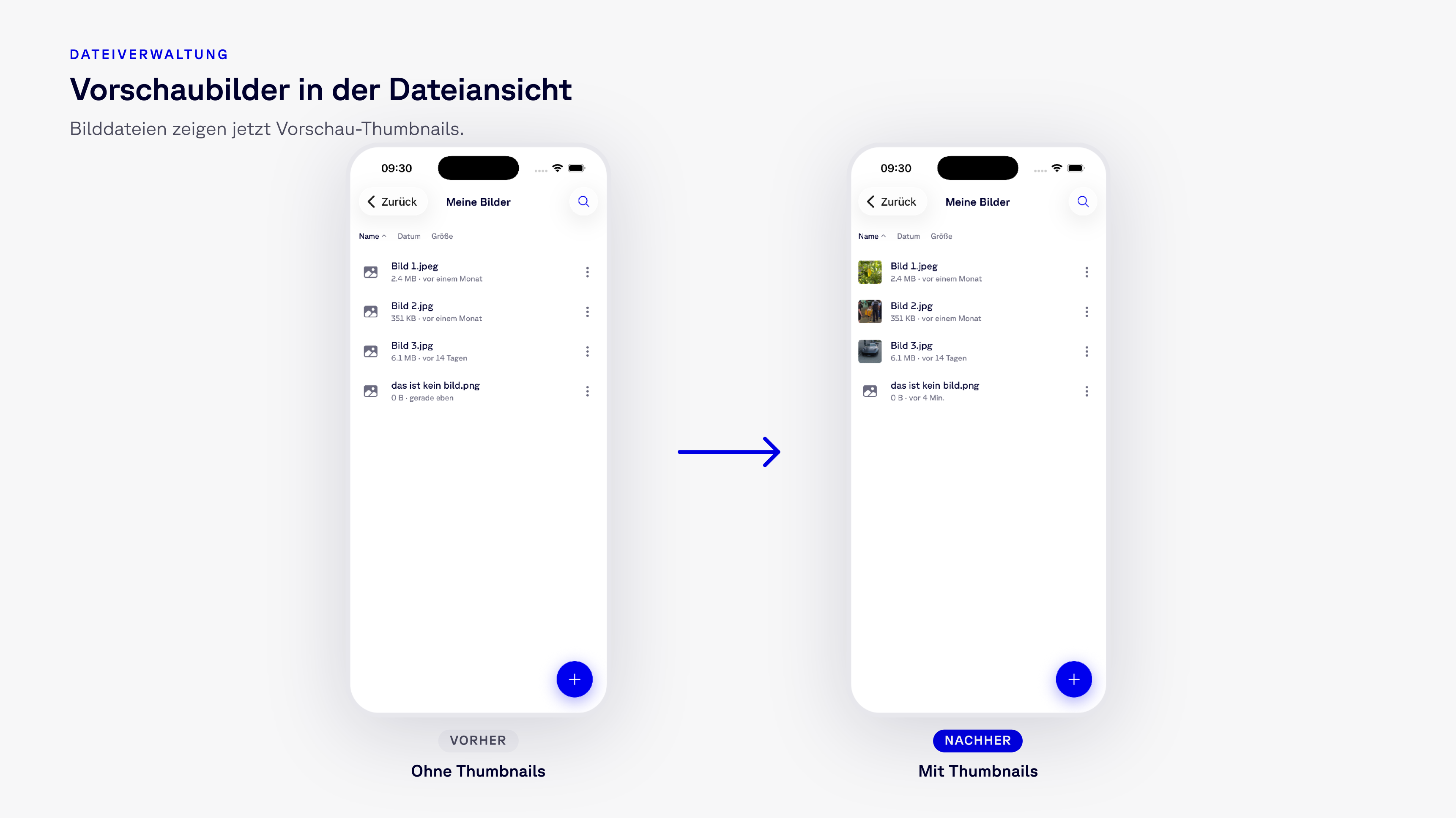
Image files now display a preview thumbnail instead of a generic icon. It may sound like a cosmetic change, and it’s the one that stands out first: a folder containing scans, product photos, or screenshots is now easy to grasp at a glance, and you no longer have to open three files to find the right one.
Selecting, Copying, and Sharing Multiple Files
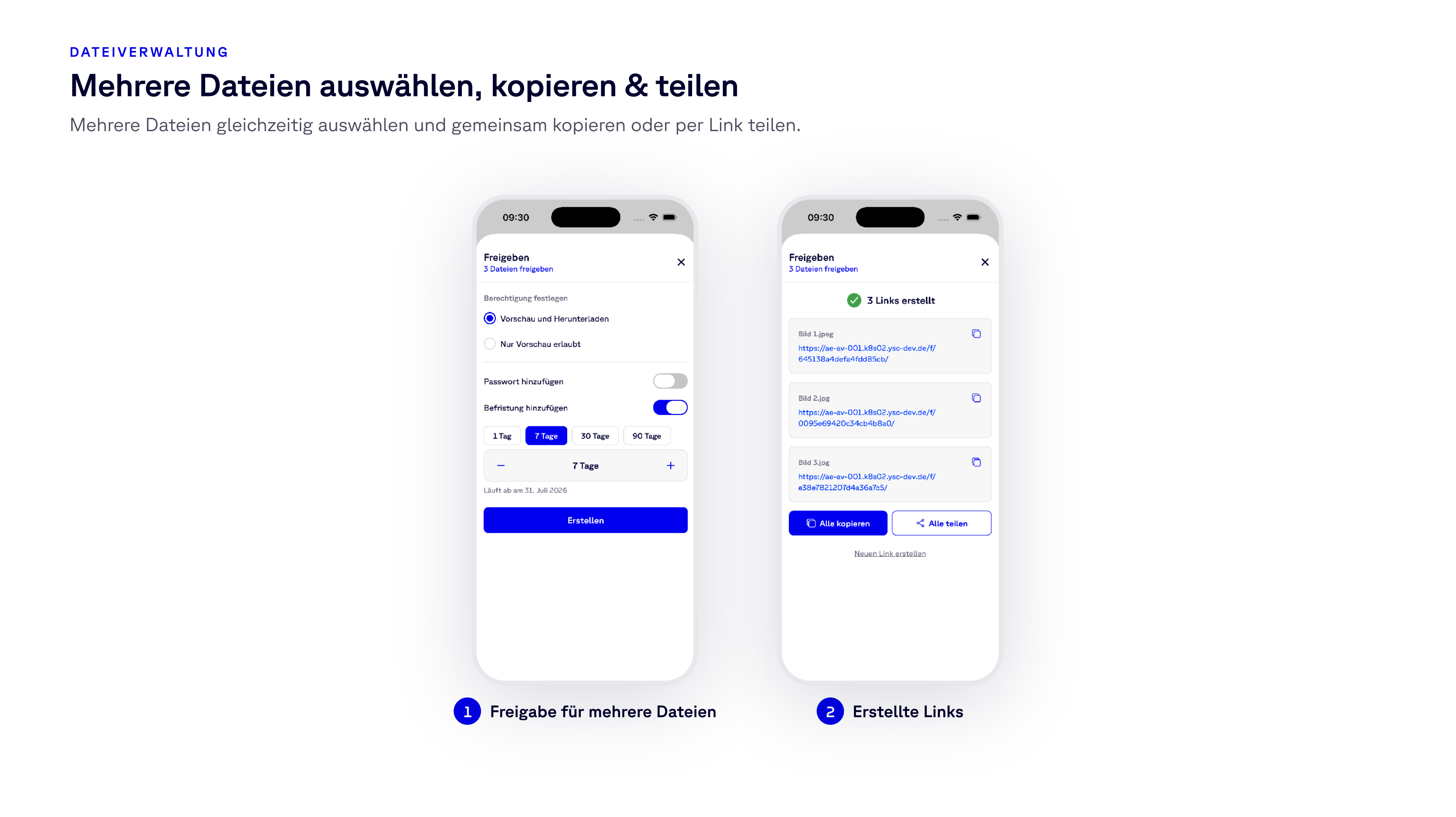
Multiple selection has arrived in the file list. You can select multiple files and copy them to another folder in a single step—or share the entire selection as links in one go. The sharing dialog indicates that it’s processing a selection rather than a single file, and you’ll receive all the generated links at once. Sending five documents to clients is now a single step instead of five.
An Expiration Period You Can Actually Read
Share links have always had an expiration period. Until now, setting it meant typing a number into a field labeled “Days”—you had to do the math yourself. Now you can choose between 1, 7, 30, and 90 days, adjust the value as needed, and the dialog displays the expiration date below.
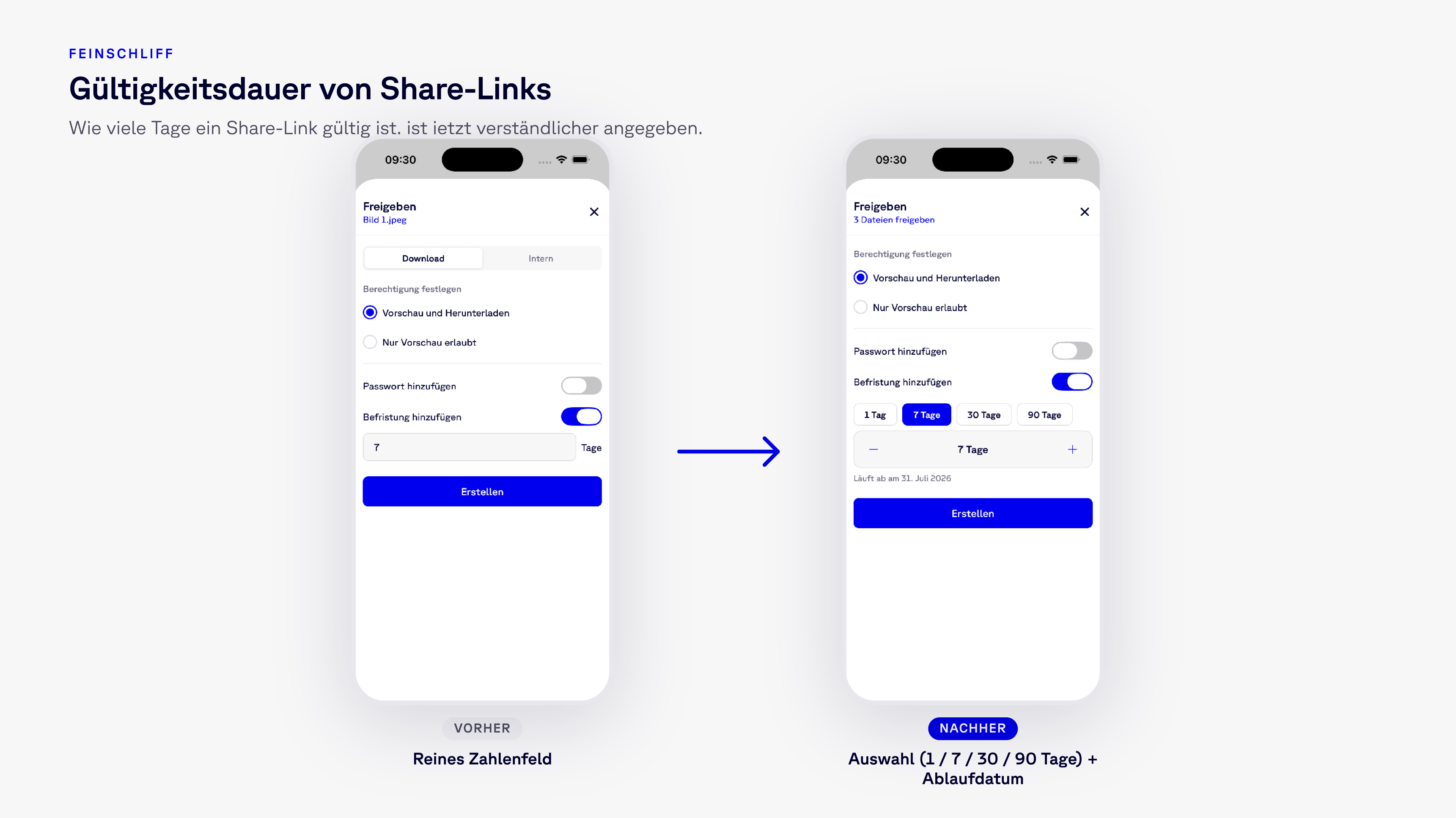
The rest of the dialog remains the same: the choice between “Preview and Download” and “Preview Only,” as well as the optional password for the link.
Images: Zoom and Save to Gallery
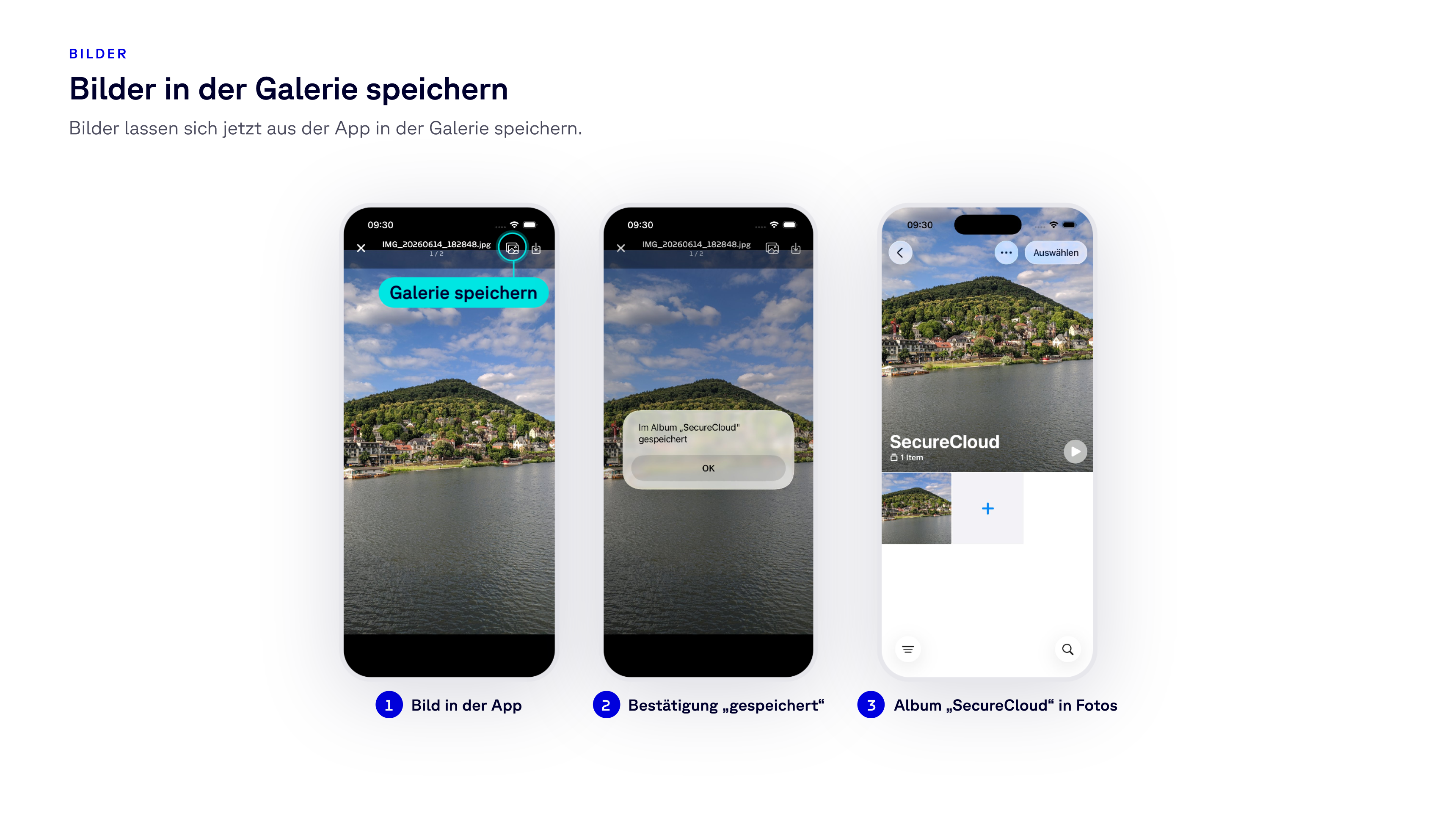
Two changes for anyone who works with photos on the go rather than with documents at a desk:
- Zoom using a pinch gesture. Images opened in the app can be zoomed in on using the familiar pinch gesture. This makes a serial number or a handwritten note on a delivery slip legible without having to export the file first.
- Save to the gallery. Images can now be saved from the app to the device’s photo gallery. They are stored in a dedicated “SecureCloud” album, keeping them separate from your personal photos.
Update Now
Version 1.1.0 is available on the App Store and Google Play; links to both are on our download page. If automatic updates are enabled, you already have the update—and integration with the file manager is just a toggle away in Settings.
If you have a request, suggestion, or feedback about the update, feel free to share it anytime. The list above was created based on what customers tell us about their experiences—and the next one will be too.
Interested in the sovereign cloud?
Our experts are happy to tell you more.